> ## Documentation Index
> Fetch the complete documentation index at: https://docs.shoppex.io/llms.txt
> Use this file to discover all available pages before exploring further.
# Automations
> Let your shop handle the routine work. When something happens, check your conditions and act.
A lot of running a shop is the same move, over and over. A chargeback comes in, so you blacklist the buyer. A product sells out, so you hide it. A big first order lands, so you give it a second look before it turns into a dispute. **Automations** do those moves for you, the moment they are needed and every time.
Every automation reads like a sentence:
> **When** a chargeback is opened, **if** the disputed amount is over \$50, **then** blacklist the buyer and tell me on Discord.
There is no AI guessing involved. An automation does exactly what you set up, costs nothing to run, and shows you every run afterwards.
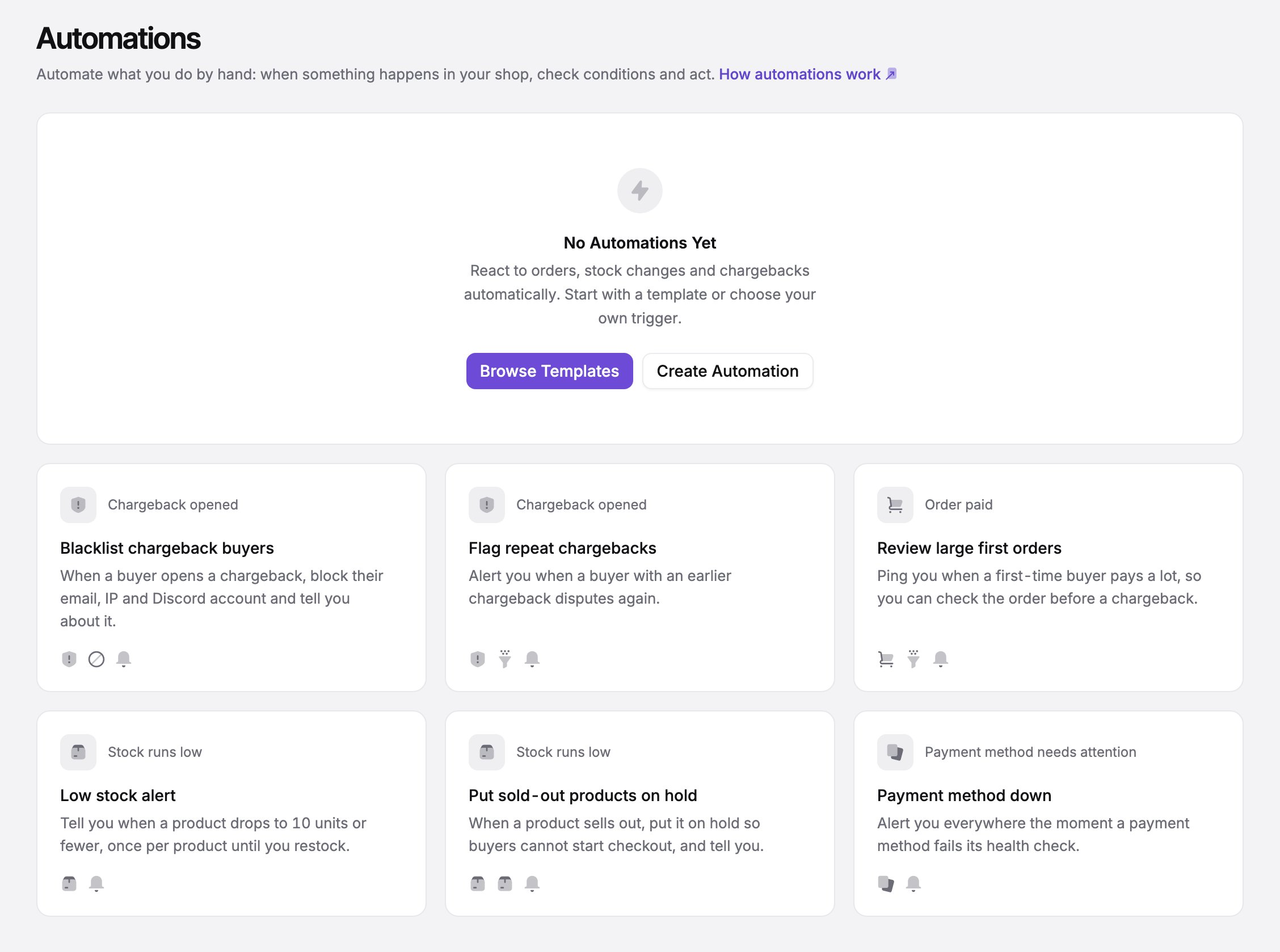
You find it in the dashboard under **Automations** (`/automations`). The first time you open it, you get a short introduction and a few templates to start from.
 ## Automations and AI Agents
The dashboard calls these rules **Automations**; the Developer API calls the resource `workflows`.
Automations are also available through the [Developer API and the Shoppex MCP server](/developers/workflows). An AI agent such as Claude or Codex can read your automations, draft new ones, test them and report on their runs. An automation created that way always starts as a draft, so nothing goes live until you, or the agent on your explicit instruction, turns it on.
## How an Automation Works
What starts the automation. That is either something that happens in your shop (an order is paid, a chargeback is opened, a ticket comes in), a number that crosses a line (stock runs low, revenue drops), or a time on a schedule.
Optional checks on the event, such as "the order total is at least 150" or "it is the buyer's first order". Match all of them or any of them. Without conditions, the automation runs every time the trigger fires.
What the automation does, in order: notify you, email the buyer, blacklist, tag, create a coupon, add store credit, change a product, give a Discord role, post in Discord, or call your own webhook. Steps can wait between each other and check again before they continue.
## Start from a template
The fastest start is a template. Each one is a complete automation for something sellers automate most. Pick one, adjust the numbers and texts to your shop, and turn it on.
## Automations and AI Agents
The dashboard calls these rules **Automations**; the Developer API calls the resource `workflows`.
Automations are also available through the [Developer API and the Shoppex MCP server](/developers/workflows). An AI agent such as Claude or Codex can read your automations, draft new ones, test them and report on their runs. An automation created that way always starts as a draft, so nothing goes live until you, or the agent on your explicit instruction, turns it on.
## How an Automation Works
What starts the automation. That is either something that happens in your shop (an order is paid, a chargeback is opened, a ticket comes in), a number that crosses a line (stock runs low, revenue drops), or a time on a schedule.
Optional checks on the event, such as "the order total is at least 150" or "it is the buyer's first order". Match all of them or any of them. Without conditions, the automation runs every time the trigger fires.
What the automation does, in order: notify you, email the buyer, blacklist, tag, create a coupon, add store credit, change a product, give a Discord role, post in Discord, or call your own webhook. Steps can wait between each other and check again before they continue.
## Start from a template
The fastest start is a template. Each one is a complete automation for something sellers automate most. Pick one, adjust the numbers and texts to your shop, and turn it on.
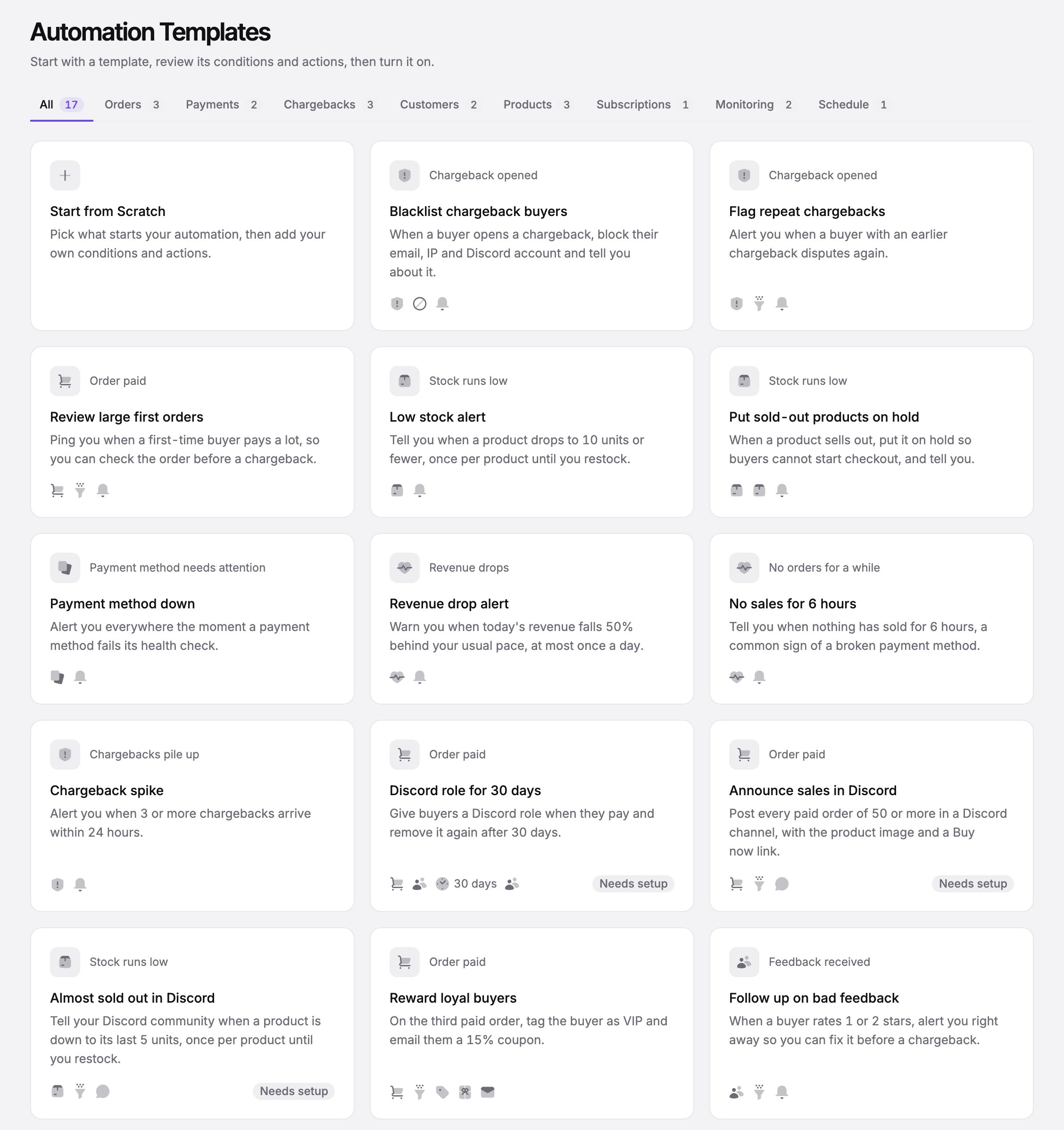 Some of the templates:
* **Blacklist chargeback buyers**: block the buyer's email, IP and Discord account the moment they open a chargeback, and tell you about it.
* **Review large first orders**: ping you when a first-time buyer pays a lot, so you can check the order before it becomes a dispute.
* **Put sold-out products on hold**: when a product sells out, hide it so nobody can start a checkout, and tell you.
* **Payment method down**: alert you everywhere the moment a connected payment method fails its health check.
* **Reward loyal buyers**: on a buyer's third paid order, tag them as VIP and email them a 15% coupon.
* **Daily sales digest**: yesterday's revenue and orders, every morning at the time you choose.
If nothing fits, choose **Create Automation** and start with the trigger.
## Build an Automation
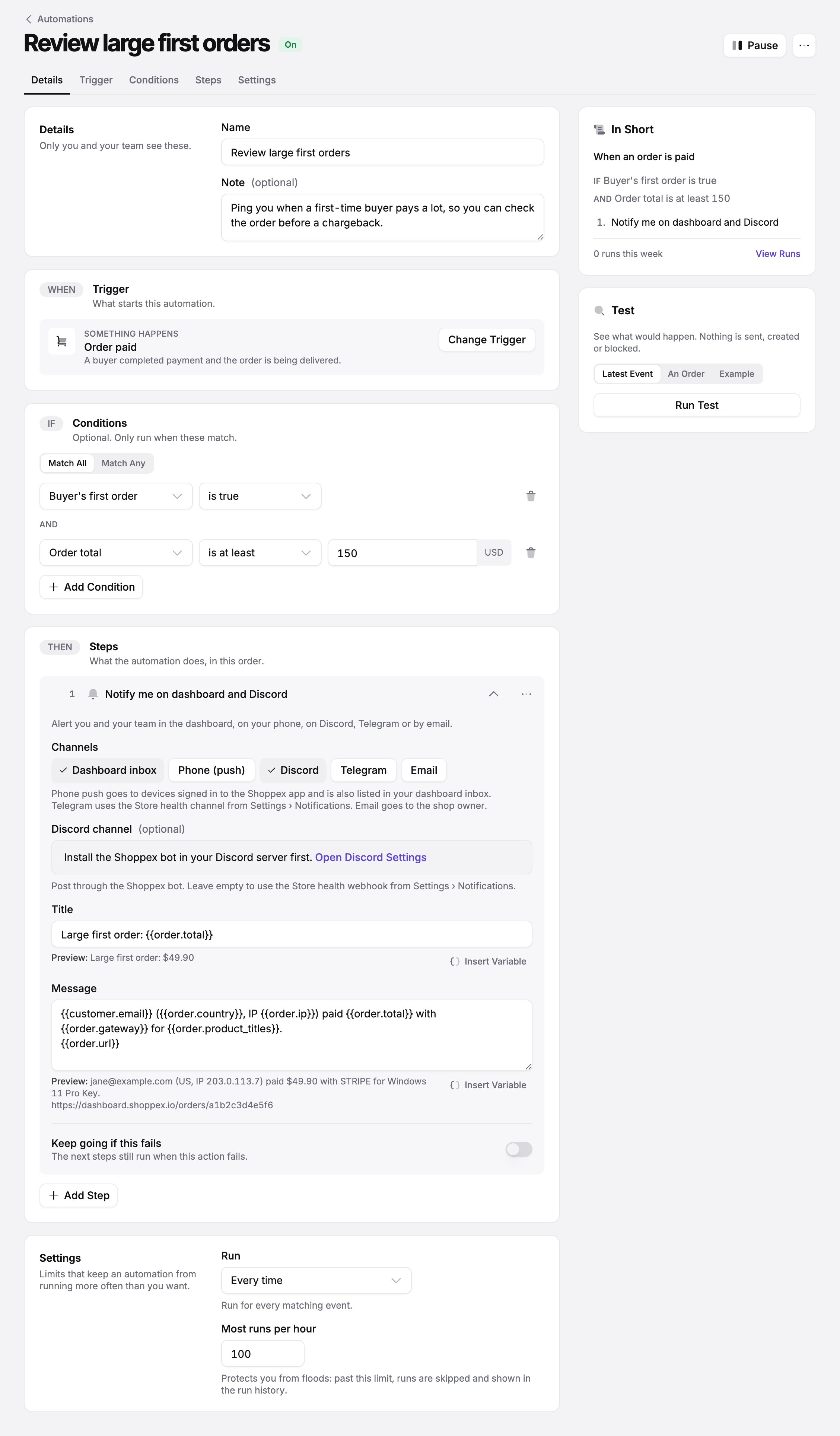
The editor is one page, from top to bottom: **When**, **If**, **Then**. There are no boxes to connect and no diagram to arrange. On the right, **In Short** repeats the whole automation as plain sentences, so you can read back what you built.
Some of the templates:
* **Blacklist chargeback buyers**: block the buyer's email, IP and Discord account the moment they open a chargeback, and tell you about it.
* **Review large first orders**: ping you when a first-time buyer pays a lot, so you can check the order before it becomes a dispute.
* **Put sold-out products on hold**: when a product sells out, hide it so nobody can start a checkout, and tell you.
* **Payment method down**: alert you everywhere the moment a connected payment method fails its health check.
* **Reward loyal buyers**: on a buyer's third paid order, tag them as VIP and email them a 15% coupon.
* **Daily sales digest**: yesterday's revenue and orders, every morning at the time you choose.
If nothing fits, choose **Create Automation** and start with the trigger.
## Build an Automation
The editor is one page, from top to bottom: **When**, **If**, **Then**. There are no boxes to connect and no diagram to arrange. On the right, **In Short** repeats the whole automation as plain sentences, so you can read back what you built.
 ### Triggers
| Kind | Triggers |
| - | - |
| Something happens | Order paid, Order shipped, Order created, Order partially paid, Order cancelled, Manual payment waiting, Chargeback opened, won or lost, Feedback received, Ticket opened, Subscription started, renewed, cancelled, Renewal coming up, Trial ended |
| A metric changes | Stock runs low, Revenue drops, No orders for a while, Chargebacks pile up, Payment method needs attention |
| On a schedule | At a fixed time on the days you pick, in your shop's timezone |
**Order shipped** runs once, when you first mark an order as shipped, with its tracking number and link. Turn on **Also on tracking updates** if it should run again when you correct the tracking number.
Metric triggers are checked every five minutes. They fire once when the number crosses the line and again only after it has recovered. A revenue drop alerts you once, not every five minutes.
### Conditions
Pick a field, a comparison and a value: **Order total** *is at least* **150**. The fields you can pick depend on the trigger. A chargeback has a disputed amount and a reason, an order has a total, a country, a payment method and its products, and a customer has their paid orders, total spent, tags and past chargebacks.
A condition on a value the event does not have never passes. An automation never runs by accident because a field was empty.
### Steps
| Step | What it does |
| - | - |
| Send me a notification | Alerts you in the dashboard, on your phone, on Discord, on Telegram or by email |
| Email the customer | Sends a plain email from your shop to the buyer |
| Blacklist the customer | Blocks their email, IP address and Discord account, for good or for a number of days |
| Tag the customer | Adds a tag you can target in Email marketing broadcasts |
| Create a coupon | Creates a single-use coupon; use `{{coupon.code}}` in a later message |
| Add store credit | Credits the customer's shop balance for their next order |
| Change product visibility | Hides, unlists or publishes a product |
| Give or remove a Discord role | Manages a role on your server for the buyer's Discord account |
| Post in Discord | Posts a message in a channel of your server through the Shoppex bot |
| Send a webhook | Sends the run data as signed JSON to your own endpoint |
| Wait | Pauses for minutes, hours or days before the next step |
| Only continue if | Checks conditions again with fresh data, and stops if they no longer hold |
**Wait** and **Only continue if** make follow-ups simple. For example: give a Discord role when an order is paid, wait 30 days, then remove it again.
Titles and messages can use **variables** such as `{{order.total}}` or `{{customer.email}}`. Choose **Insert Variable** next to a field to pick one, and the **Preview** under the field shows the text as it will be sent.
### Where notifications go
**Send me a notification** reaches you where you are:
* **Dashboard inbox**: the bell in the dashboard.
* **Phone**: a push notification from the Shoppex app. Sign in to the app on your phone and allow notifications.
* **Discord**: your Store health webhook from **Settings → Notifications**, or a channel of your server when the Shoppex bot is installed there.
* **Telegram**: your connected Telegram bot.
* **Email**: the shop owner's email address.
**Post in Discord** is for your community rather than for you: announce a restock in `#drops`, or celebrate a big sale in `#sales`. It posts through the Shoppex bot, so the bot has to be installed on your server first.
## Test before you turn it on
The **Test** card shows what the automation would do, without doing it. Nothing is sent, created or blocked. Test against the latest real event, against an order you pick, or against example data.
### Triggers
| Kind | Triggers |
| - | - |
| Something happens | Order paid, Order shipped, Order created, Order partially paid, Order cancelled, Manual payment waiting, Chargeback opened, won or lost, Feedback received, Ticket opened, Subscription started, renewed, cancelled, Renewal coming up, Trial ended |
| A metric changes | Stock runs low, Revenue drops, No orders for a while, Chargebacks pile up, Payment method needs attention |
| On a schedule | At a fixed time on the days you pick, in your shop's timezone |
**Order shipped** runs once, when you first mark an order as shipped, with its tracking number and link. Turn on **Also on tracking updates** if it should run again when you correct the tracking number.
Metric triggers are checked every five minutes. They fire once when the number crosses the line and again only after it has recovered. A revenue drop alerts you once, not every five minutes.
### Conditions
Pick a field, a comparison and a value: **Order total** *is at least* **150**. The fields you can pick depend on the trigger. A chargeback has a disputed amount and a reason, an order has a total, a country, a payment method and its products, and a customer has their paid orders, total spent, tags and past chargebacks.
A condition on a value the event does not have never passes. An automation never runs by accident because a field was empty.
### Steps
| Step | What it does |
| - | - |
| Send me a notification | Alerts you in the dashboard, on your phone, on Discord, on Telegram or by email |
| Email the customer | Sends a plain email from your shop to the buyer |
| Blacklist the customer | Blocks their email, IP address and Discord account, for good or for a number of days |
| Tag the customer | Adds a tag you can target in Email marketing broadcasts |
| Create a coupon | Creates a single-use coupon; use `{{coupon.code}}` in a later message |
| Add store credit | Credits the customer's shop balance for their next order |
| Change product visibility | Hides, unlists or publishes a product |
| Give or remove a Discord role | Manages a role on your server for the buyer's Discord account |
| Post in Discord | Posts a message in a channel of your server through the Shoppex bot |
| Send a webhook | Sends the run data as signed JSON to your own endpoint |
| Wait | Pauses for minutes, hours or days before the next step |
| Only continue if | Checks conditions again with fresh data, and stops if they no longer hold |
**Wait** and **Only continue if** make follow-ups simple. For example: give a Discord role when an order is paid, wait 30 days, then remove it again.
Titles and messages can use **variables** such as `{{order.total}}` or `{{customer.email}}`. Choose **Insert Variable** next to a field to pick one, and the **Preview** under the field shows the text as it will be sent.
### Where notifications go
**Send me a notification** reaches you where you are:
* **Dashboard inbox**: the bell in the dashboard.
* **Phone**: a push notification from the Shoppex app. Sign in to the app on your phone and allow notifications.
* **Discord**: your Store health webhook from **Settings → Notifications**, or a channel of your server when the Shoppex bot is installed there.
* **Telegram**: your connected Telegram bot.
* **Email**: the shop owner's email address.
**Post in Discord** is for your community rather than for you: announce a restock in `#drops`, or celebrate a big sale in `#sales`. It posts through the Shoppex bot, so the bot has to be installed on your server first.
## Test before you turn it on
The **Test** card shows what the automation would do, without doing it. Nothing is sent, created or blocked. Test against the latest real event, against an order you pick, or against example data.
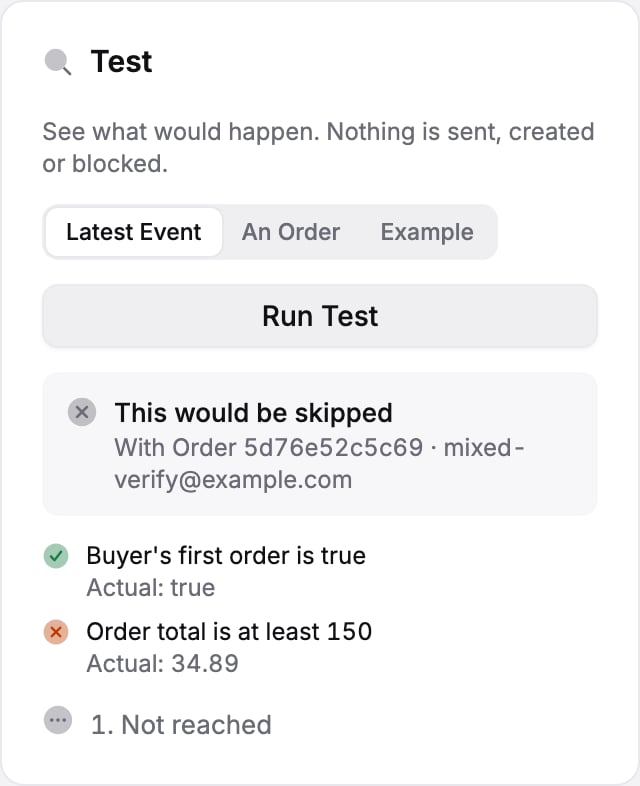 The result lists every condition with the actual value it saw, and every step with what it would have done. When a step could not work in your shop yet, for example Discord is not connected, the test says so.
## Turn it on
A new automation is a **draft** until you turn it on. Drafts may be unfinished. To turn an automation on, every required field has to be filled in. If something is missing, the editor takes you straight to it.
A few settings keep an automation in check. Most shops never change them:
* **Run**: every time, once per customer, or once per order.
* **Most runs per hour**: a flood guard. Past the limit, runs are skipped and shown in the history, so a sudden burst of events cannot send you a hundred messages.
Changes to an automation that is on apply to new runs. Runs that are already waiting in a **Wait** step keep the version they started with. When you pause an automation, you choose whether to cancel those waiting runs as well.
## See what happened
**Automations → Runs** lists every run: which automation, for which order or customer, how far it got and whether it worked. Open a run to see the event that started it, how each condition was evaluated, and what each step did.
The result lists every condition with the actual value it saw, and every step with what it would have done. When a step could not work in your shop yet, for example Discord is not connected, the test says so.
## Turn it on
A new automation is a **draft** until you turn it on. Drafts may be unfinished. To turn an automation on, every required field has to be filled in. If something is missing, the editor takes you straight to it.
A few settings keep an automation in check. Most shops never change them:
* **Run**: every time, once per customer, or once per order.
* **Most runs per hour**: a flood guard. Past the limit, runs are skipped and shown in the history, so a sudden burst of events cannot send you a hundred messages.
Changes to an automation that is on apply to new runs. Runs that are already waiting in a **Wait** step keep the version they started with. When you pause an automation, you choose whether to cancel those waiting runs as well.
## See what happened
**Automations → Runs** lists every run: which automation, for which order or customer, how far it got and whether it worked. Open a run to see the event that started it, how each condition was evaluated, and what each step did.
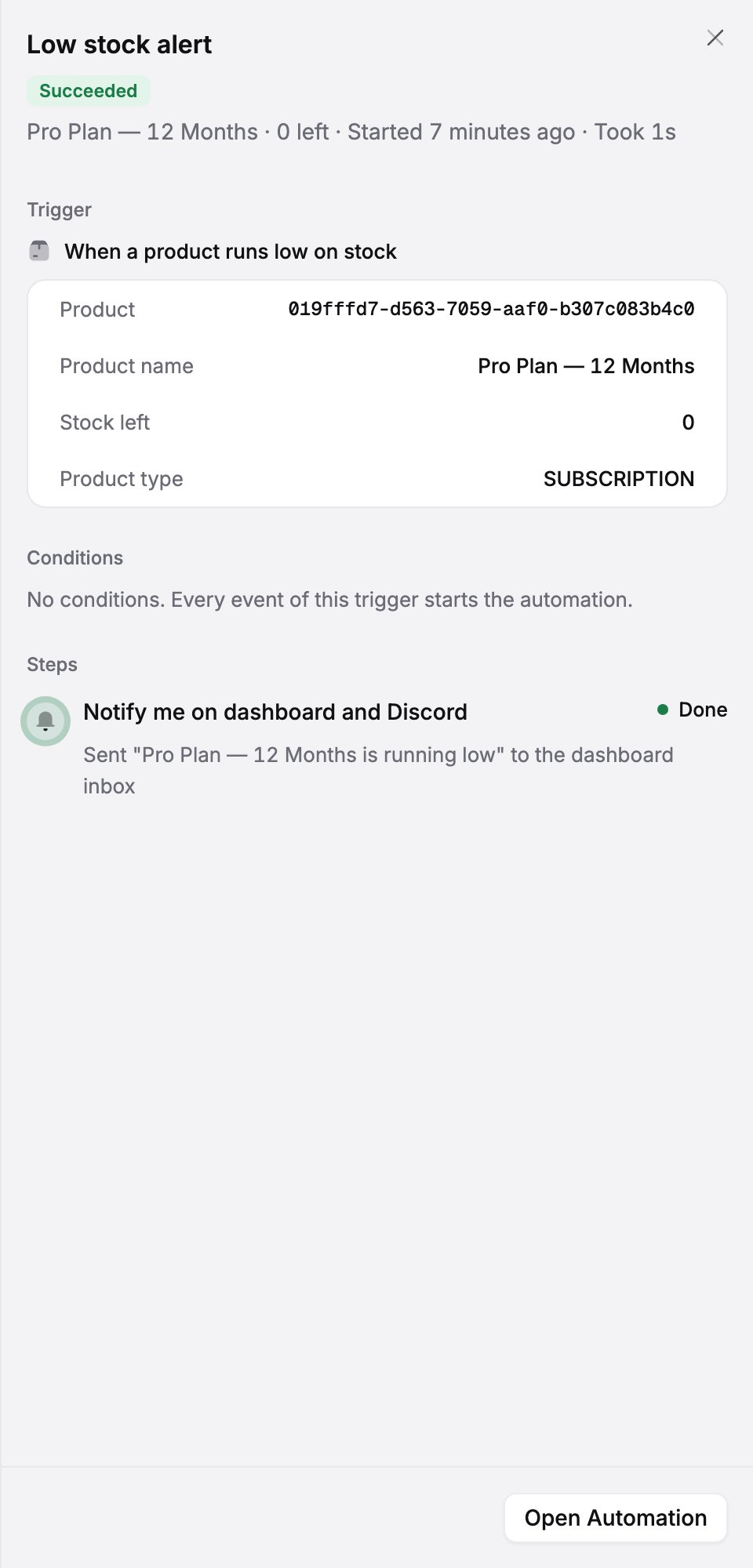 A failed run shows the error in plain words and what to fix. Once it is fixed, **Retry** picks the run up at the failed step. Steps that already worked are not repeated.
**Automations protect themselves.** If an automation fails five times in a row, for example because a Discord role was deleted, Shoppex pauses it and tells you, instead of failing silently on every order. An automation also never triggers itself, and chains of automations that trigger each other stop after three levels.
## The overview
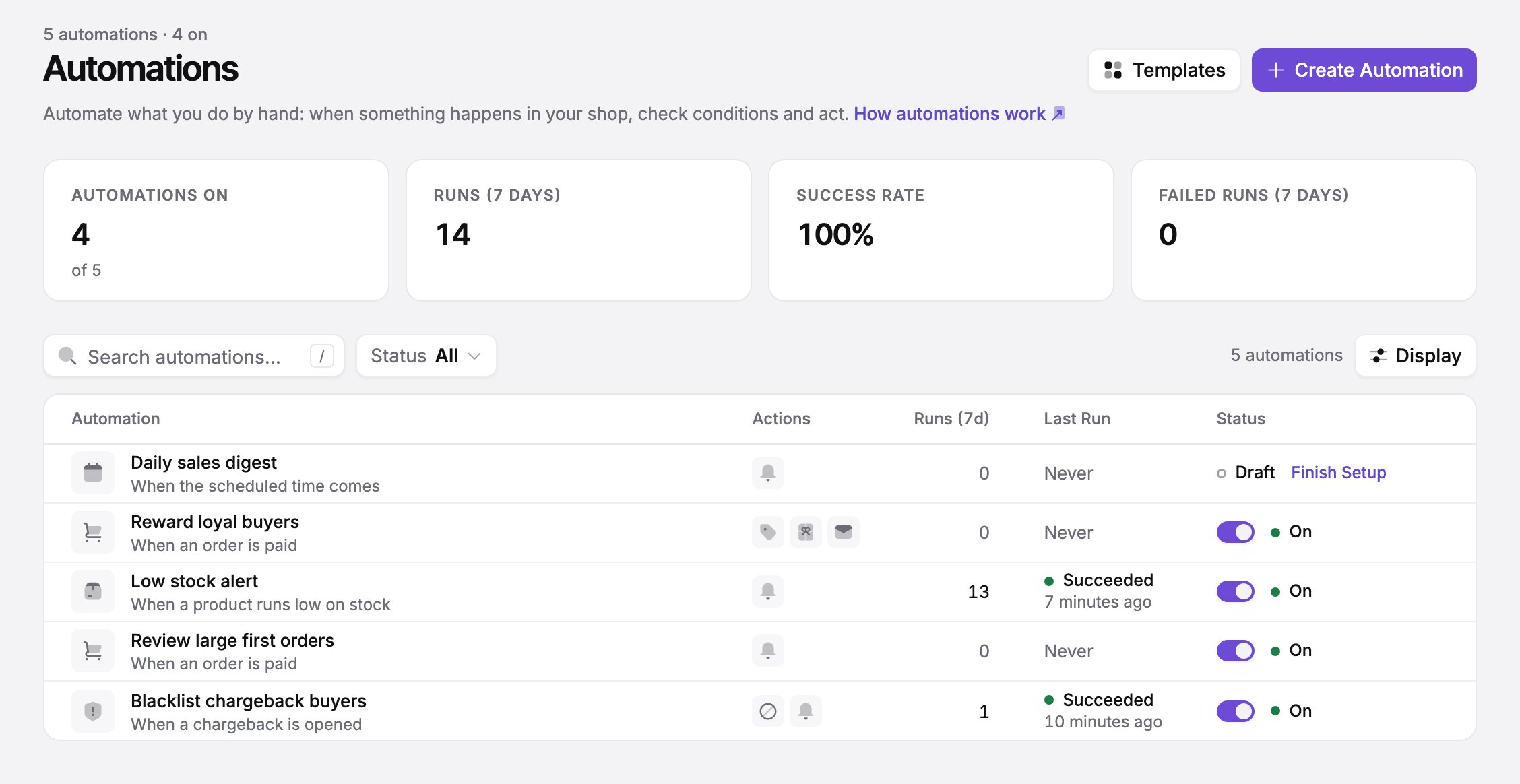
The Automations page shows how your automation is doing: how many automations are on, how many runs the last seven days had, the success rate and any failed runs. Each automation shows its trigger, what it does, its latest run, and a switch to turn it on or off.
A failed run shows the error in plain words and what to fix. Once it is fixed, **Retry** picks the run up at the failed step. Steps that already worked are not repeated.
**Automations protect themselves.** If an automation fails five times in a row, for example because a Discord role was deleted, Shoppex pauses it and tells you, instead of failing silently on every order. An automation also never triggers itself, and chains of automations that trigger each other stop after three levels.
## The overview
The Automations page shows how your automation is doing: how many automations are on, how many runs the last seven days had, the success rate and any failed runs. Each automation shows its trigger, what it does, its latest run, and a switch to turn it on or off.
 ## Good to know
* Email flows send email sequences to your contacts and live in **Email → Email Flows**. An automation can tag a customer, and a broadcast can target that tag.
* A shop can have up to 100 automations, each with up to 20 conditions and 20 steps. A single wait can last up to 90 days.
* Team members need the **Read Automations** permission to see automations and their runs, and **Manage Automations** to change them. Neither comes with another permission, because an automation can blacklist buyers and issue coupons.
This documentation is built and hosted on [Mintlify](https://mintlify.com), a developer documentation platform.
## Good to know
* Email flows send email sequences to your contacts and live in **Email → Email Flows**. An automation can tag a customer, and a broadcast can target that tag.
* A shop can have up to 100 automations, each with up to 20 conditions and 20 steps. A single wait can last up to 90 days.
* Team members need the **Read Automations** permission to see automations and their runs, and **Manage Automations** to change them. Neither comes with another permission, because an automation can blacklist buyers and issue coupons.
This documentation is built and hosted on [Mintlify](https://mintlify.com), a developer documentation platform.