

/dashboard on your store’s address, for example yourshop.shoppex.io/dashboard or yourdomain.com/dashboard. Buyers open it from the account link in your store’s header. They sign in with an email code and see everything they bought from you: orders, keys, files, subscriptions, store credit, points, referral earnings and support tickets.
You do not build or switch on the account. It comes with the store and uses your theme’s colors and fonts.
Sign-in
Buyers enter their email and get a 6-digit code. There is no password to forget.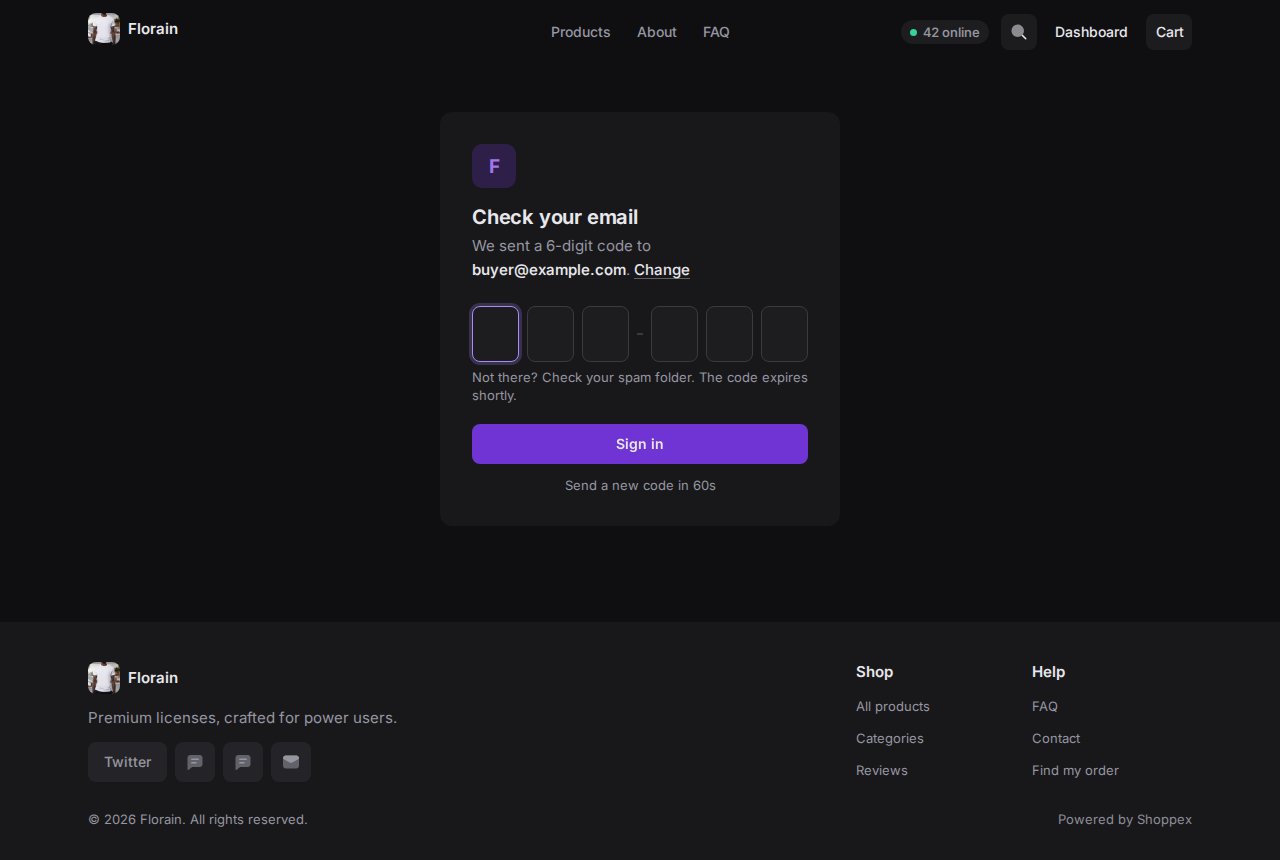
- The code email also has an Open my account button. It opens the account with the code already filled in; the buyer still presses Sign in. A mail scanner that opens the link first cannot use up the code.
- A wrong code, an expired code and too many tries each get their own message. After too many tries the card says how long to wait.
- The buyer signs in with the email they used at checkout. That is how the account finds their orders.
- To let buyers sign in with Discord as well, turn on Allow Discord sign-in on Channels → Discord. A buyer whose Discord is not connected yet signs in with their email once and connects Discord in Settings.
What buyers see
The side navigation groups the account into Purchases, Benefits, Support and Settings. On a phone, the same sections open from a menu, and each page fills the screen.Overview
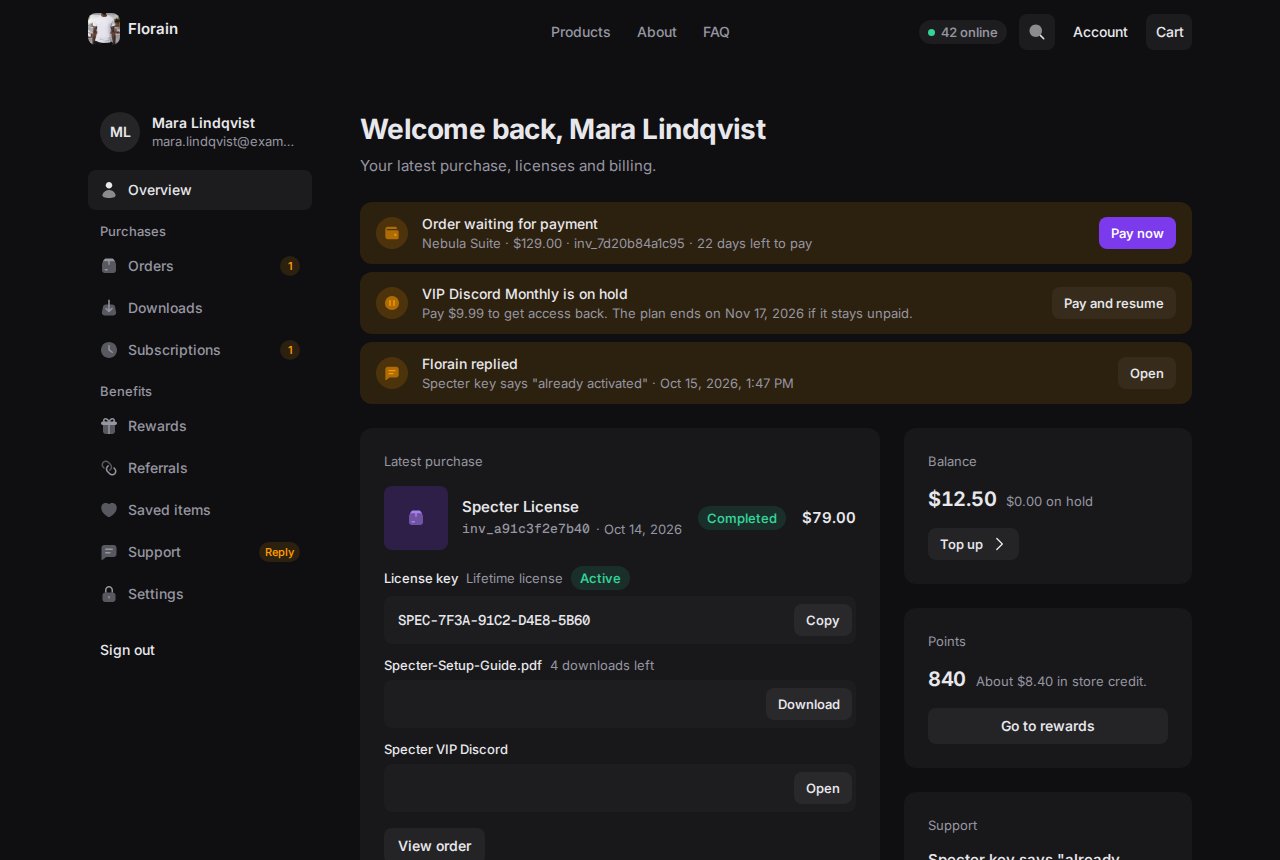
The first screen after sign-in. At the top, everything that needs the buyer: an order waiting for payment (Pay now), a subscription on hold (Pay and resume), a support ticket you answered (Open). Below that, the latest purchase with its keys, files and links, then the store balance, points and the latest ticket. The Orders, Subscriptions and Support entries in the navigation carry a badge while something there needs the buyer.Orders
Every order with its status, searchable by order ID or product. An order opens with its items, what was delivered, and the action that fits its state: Pay now on an unpaid order, Buy again on an expired one, Contact shop on a disputed one.Downloads
Keys and files from completed orders, grouped by order, with All, Keys and Files filters.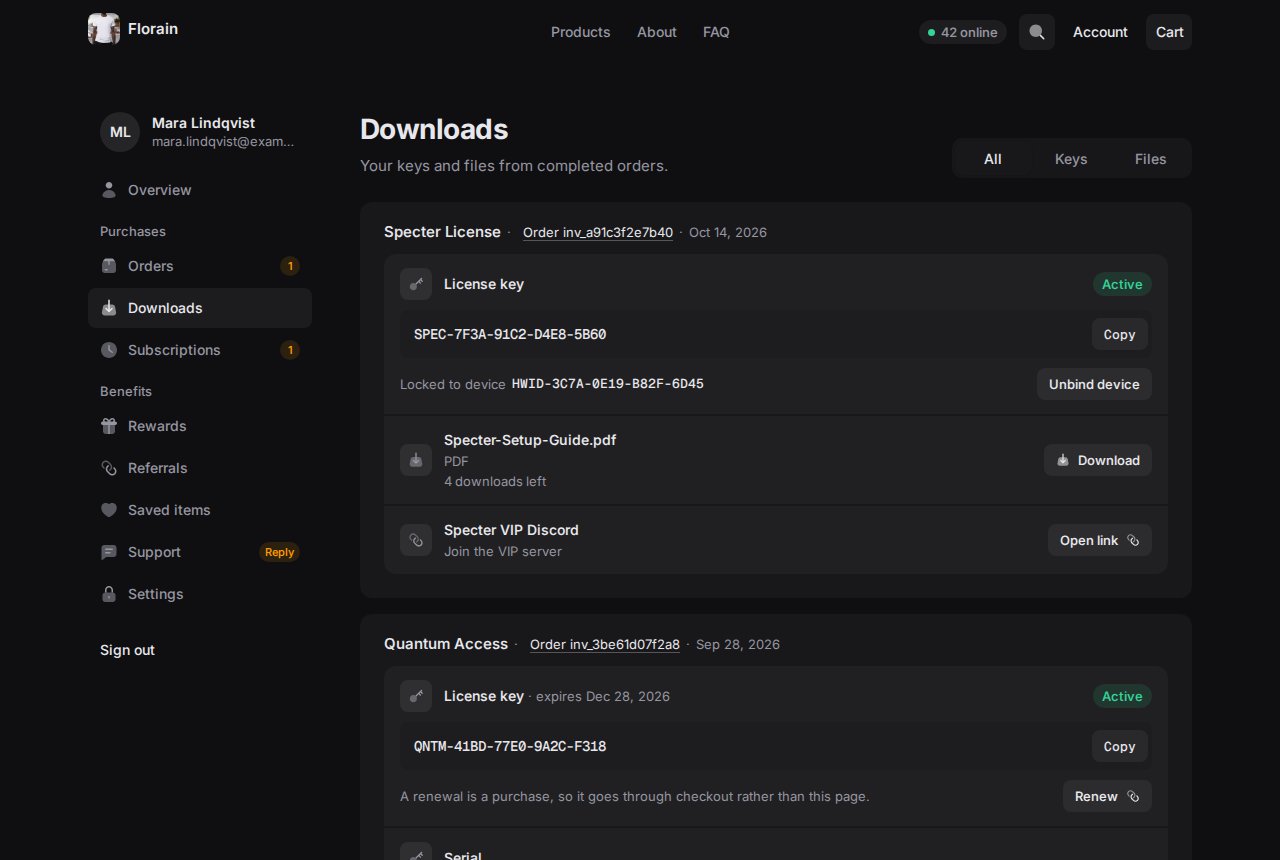
- A key locked to a device has Unbind device, so the buyer can move it to a new PC without a ticket.
- A license that expires has Renew. Renewing is a purchase, so it goes through checkout.
- Files show how many downloads are left.
Subscriptions
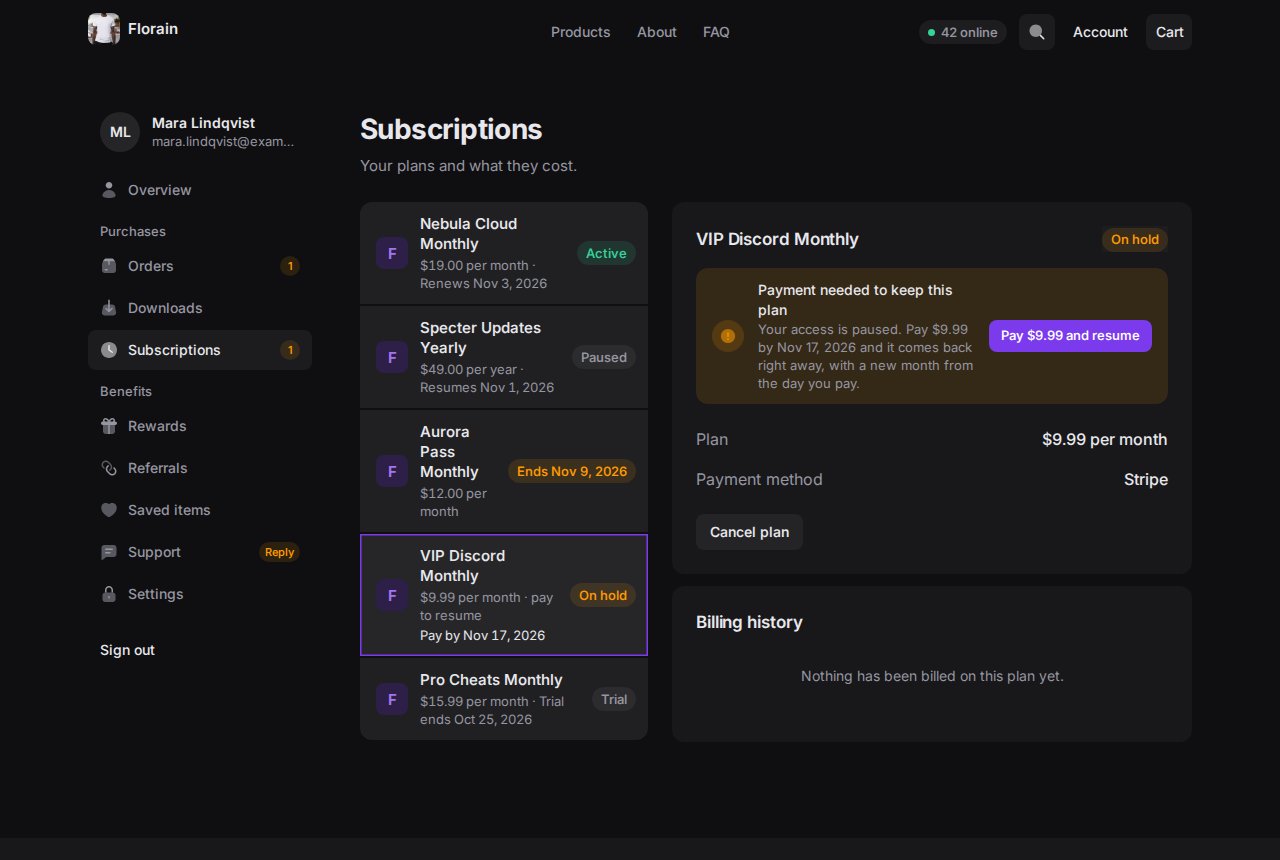
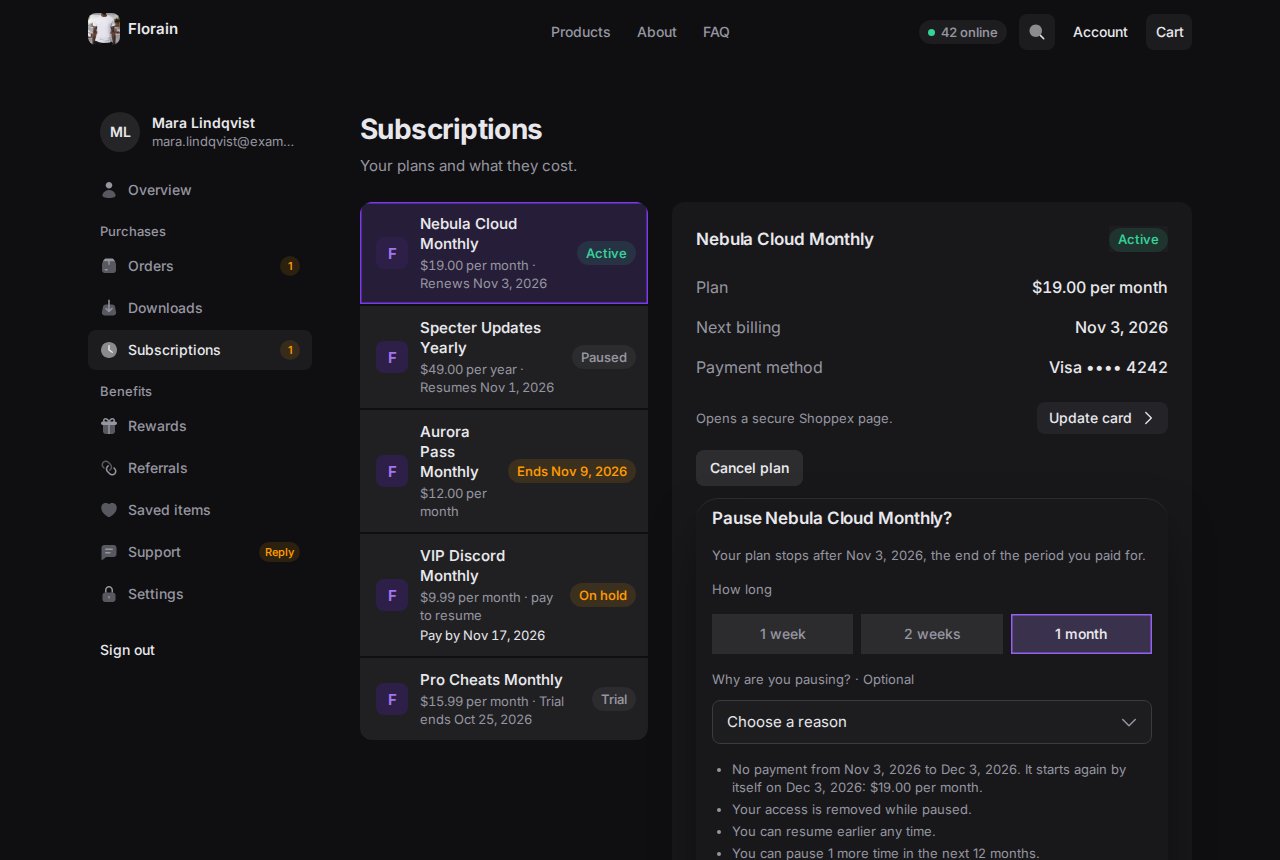
Every plan with its state: active, in a trial, paused, on hold, or ending on a date. A plan opens with its price, next billing date, payment method and billing history. The buttons follow your rules in Settings › Store › Subscriptions:- Change plan, with the exact amount before the buyer confirms.
- Pause and Resume, within your pause limits.
- Pay and resume on a plan that is on hold.
- Cancel plan, and Undo cancel until the period ends.
- Update card for card subscriptions. It opens a secure Shoppex page.
Rewards and saved items
Rewards shows the buyer’s points, what they are worth in store credit, and the reward codes they earned. Buyers redeem points into store credit here. Saved items lists the products they saved in your store.Referrals
Buyers in your affiliate program see their earnings (available, pending, withdrawn), their referral links with clicks and sales, and their commission rates. They can ask for a new link.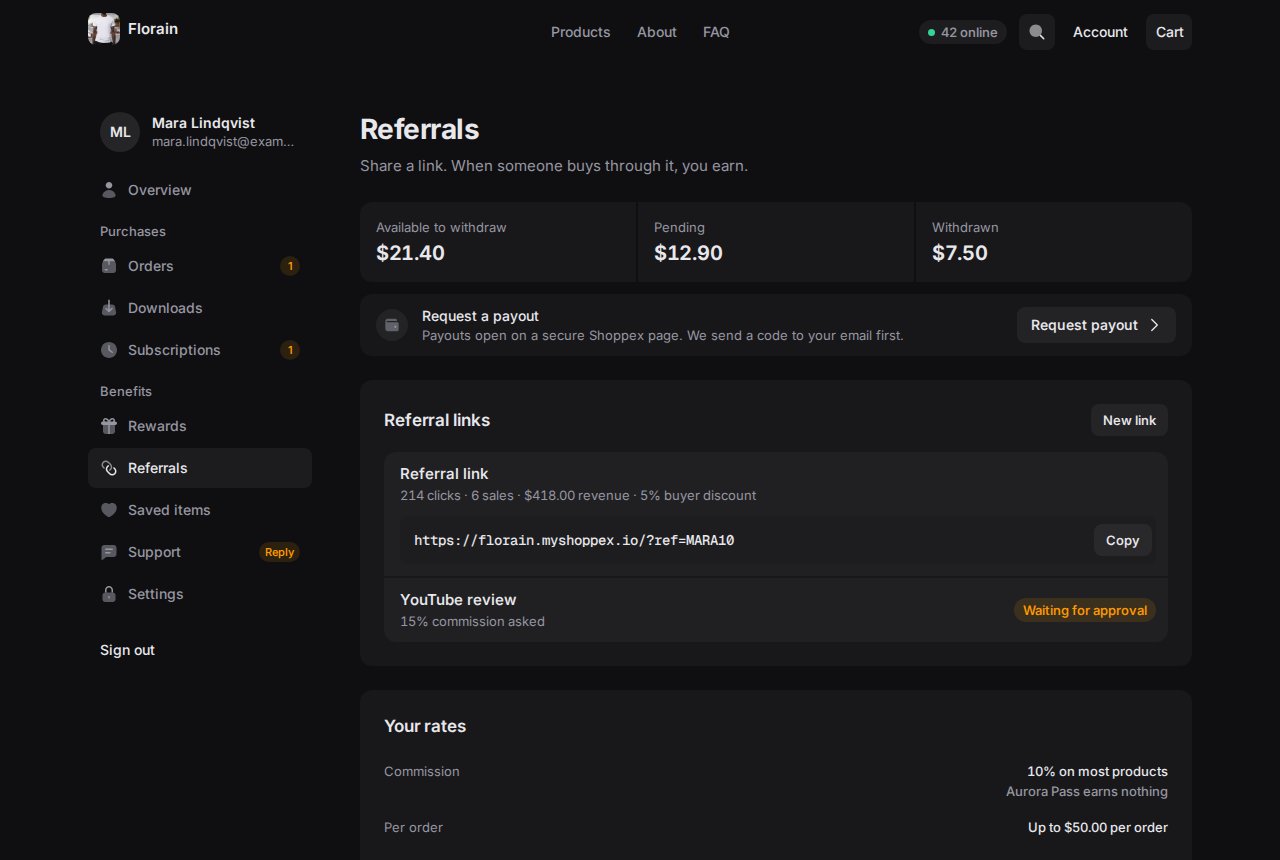
Support
The buyer’s tickets, with whose turn it is: Shop replied or Waiting for the shop. Buyers reply in the thread, attach images, and open a new ticket with an order already picked.Settings
- Name and profile.
- Order emails: which order updates they get. The delivery email is always sent.
- Marketing emails: news and offers from your shop.
- Signed in devices: every device that can open the account, with sign-out per device.
- Discord: connect or disconnect their Discord account.
- Sign out.
Wholesale
When you run a reseller program, buyers who are resellers, or who can apply, get a Wholesale section with reseller top-ups and tools. See Resellers.Every theme shows the same account
All visual themes draw the same account, in their own colors and fonts. A buyer finds the same sections and buttons in every theme, and a change of theme does not move them.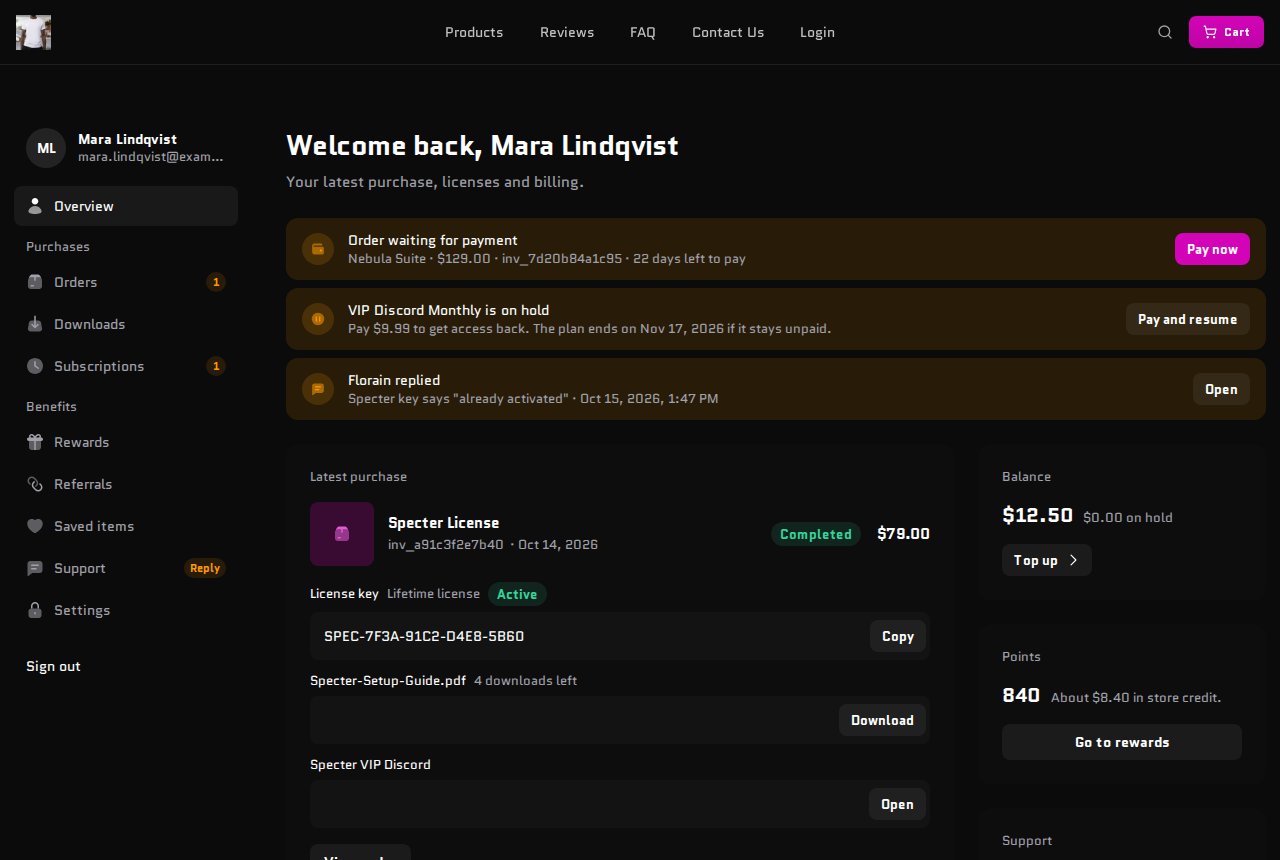
On a phone
On a phone, the navigation opens from the menu, the notices stack, and each plan or order opens as its own screen with a way back.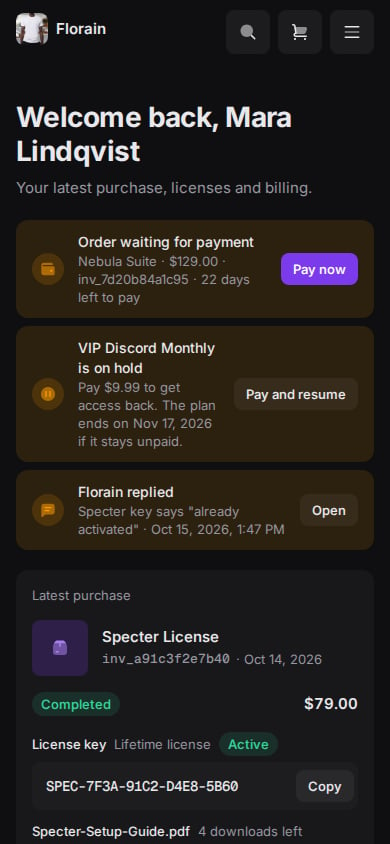
Shops without a live storefront
The account works even when your store does not:- Storefront not published yet: the shop is open but has no live theme (no theme picked, hidden, setup not finished, or a code storefront without a published build).
/dashboardstill serves the account, so buyers can sign in and find their orders. The other store pages show that the store is not published yet. - Hosted Storefront off: you sell on your own site and turned off Hosted Storefront in Settings › Store › General, with a Redirect Visitors To address. Store pages on your Shoppex address send visitors to that address.
/dashboardstill serves the account, and its way back leads to your site.
Sign a buyer in from your own app
Your app, support desk or bot can send a buyer straight into their account without an email code. It creates a portal session with the Developer API and sends the buyer the link. The API key needs the Log buyers into the portal scope, which only the store owner can give.- The link works once and expires after 15 minutes. The session it opens lasts 24 hours.
- An optional return address puts a Back to link at the top of the account. It must be an
httpsaddress on your store’s own domains: yourmyshoppex.ioaddress or a custom domain you verified. - A session from a link can read the account, but cannot move money, change how the buyer signs in, or see or sign out the buyer’s devices. For those, the buyer signs in with their email code.
Hosted buyer pages
Some actions move money or hand out credentials. These open on a secure page on Shoppex’s checkout host instead of inside your store, and ask the buyer for an email code first. The account links to them, and each page has a way back to the account.
The payout page checks the amount, the wallet address and the network before it sends a request. A request that was already sent is never sent twice.
What you configure
The account reads your settings. There is no separate account setup.
Downloads and Subscriptions are always in the navigation. A buyer with nothing there sees a short empty state. Referrals shows up for buyers in your affiliate program, or who can join it by making their first link.