

Your money stays yours. Payments go straight into your wallet. Shoppex never holds your funds
and cannot access them — only you, with your wallet password and recovery phrase, can move the
money.
How it works
When you create a wallet, the keys and recovery phrase are generated on your device and encrypted with a password you choose. Shoppex only ever receives an encrypted backup that it cannot open — there is no Shoppex copy of your keys, your password, or your recovery phrase.- Keys never leave your device unencrypted. Wallet creation and transaction signing both happen locally in your browser.
- Payments arrive on-chain, directly. A buyer who pays with crypto sends to an address derived from your wallet. The coins land in your wallet the moment the transaction confirms.
- Only you can spend. Moving funds requires your wallet password to decrypt the keys, plus an account step-up (your dashboard password or two-factor code). Both run on your device.
Fees
Because funds settle straight to your wallet on-chain, there’s no payment processor in the middle taking a cut. The Shoppex Wallet is the lowest-fee way to accept crypto:- No extra Shoppex fee for crypto processing. Shoppex doesn’t add a processing fee on top of native crypto payments.
- You only pay the network fee. The blockchain’s mining/network fee is the only deduction on a transfer, and it goes to the network — not to Shoppex. There’s no provider margin layered on top.
- Providers charge their own fee. Accepting crypto through a provider instead (Cryptomus, Oxapay) routes the money through them, and they take their own processing fee before it reaches you. The native wallet skips that entirely.
The standard Shoppex platform fee still applies — it’s the same across every payment method and
isn’t tied to crypto. The points above are only about crypto processing costs. See
How payments work for how the platform fee works.
Supported chains
Bitcoin
Native segwit (
bc1…) receiving addresses. Pays directly to your wallet on-chain.Litecoin
Native segwit (
ltc1…) receiving addresses. Same self-custodial model as Bitcoin.Set up your wallet
Open Settings → Payments and find the Shoppex Wallet section. If you haven’t set one up yet, you’ll see the onboarding wizard.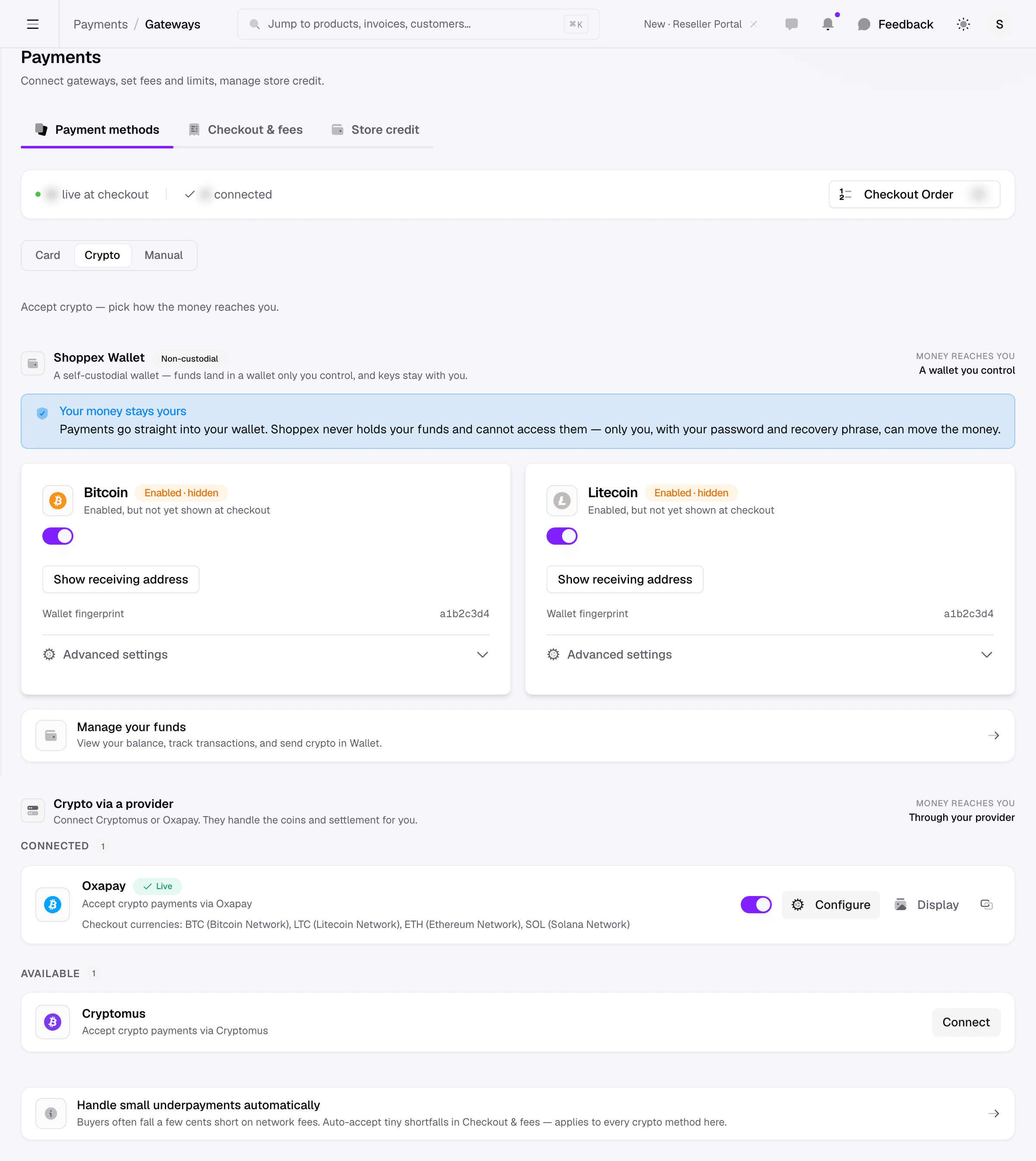
1
Create
Shoppex generates a fresh wallet on this device the moment the wizard opens — keys and a 12-word
recovery phrase, created locally and never sent anywhere in the clear.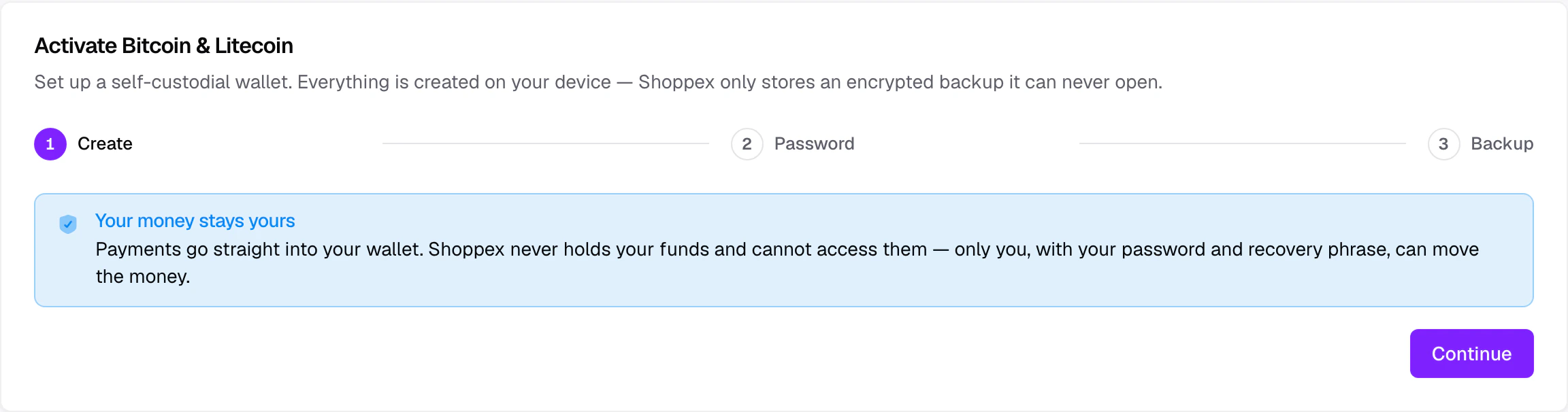
Wallet creation needs a secure (
https) connection. If your browser blocks it, you’ll see
“Could not create a wallet” — load the dashboard over HTTPS and try again.2
Password
Choose a wallet password. It encrypts your wallet on this device and is required every time
you send funds. Shoppex never receives it.A strength meter guides you toward a strong password, and you confirm it once to avoid typos.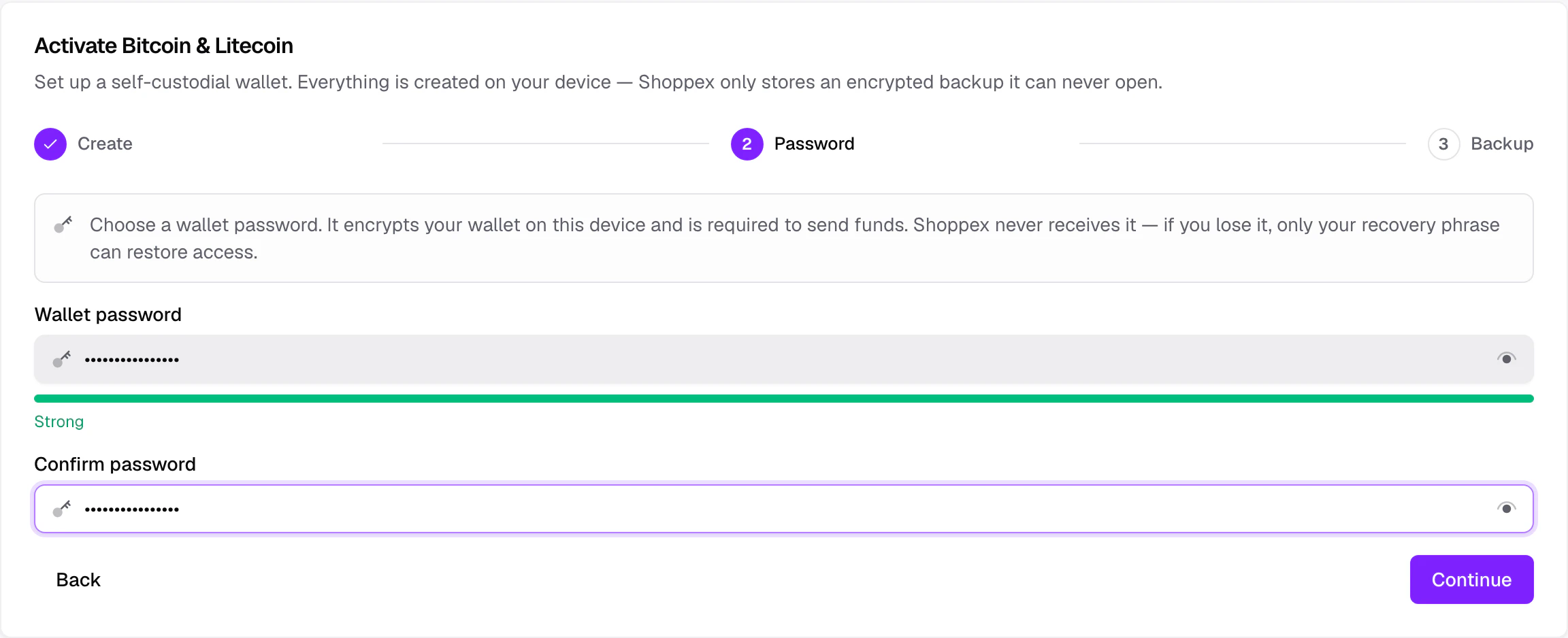
3
Backup
Your 12-word recovery phrase is shown once. Write it down, in order, and store it
offline — never in a screenshot, cloud note, or email. Anyone who has this phrase can take your
funds.Before you can activate, you confirm two statements (that you’ve stored the phrase safely, and
that you understand no one can recover your funds without it) and pass a short verify
challenge — re-typing a few of the words to prove you actually saved them.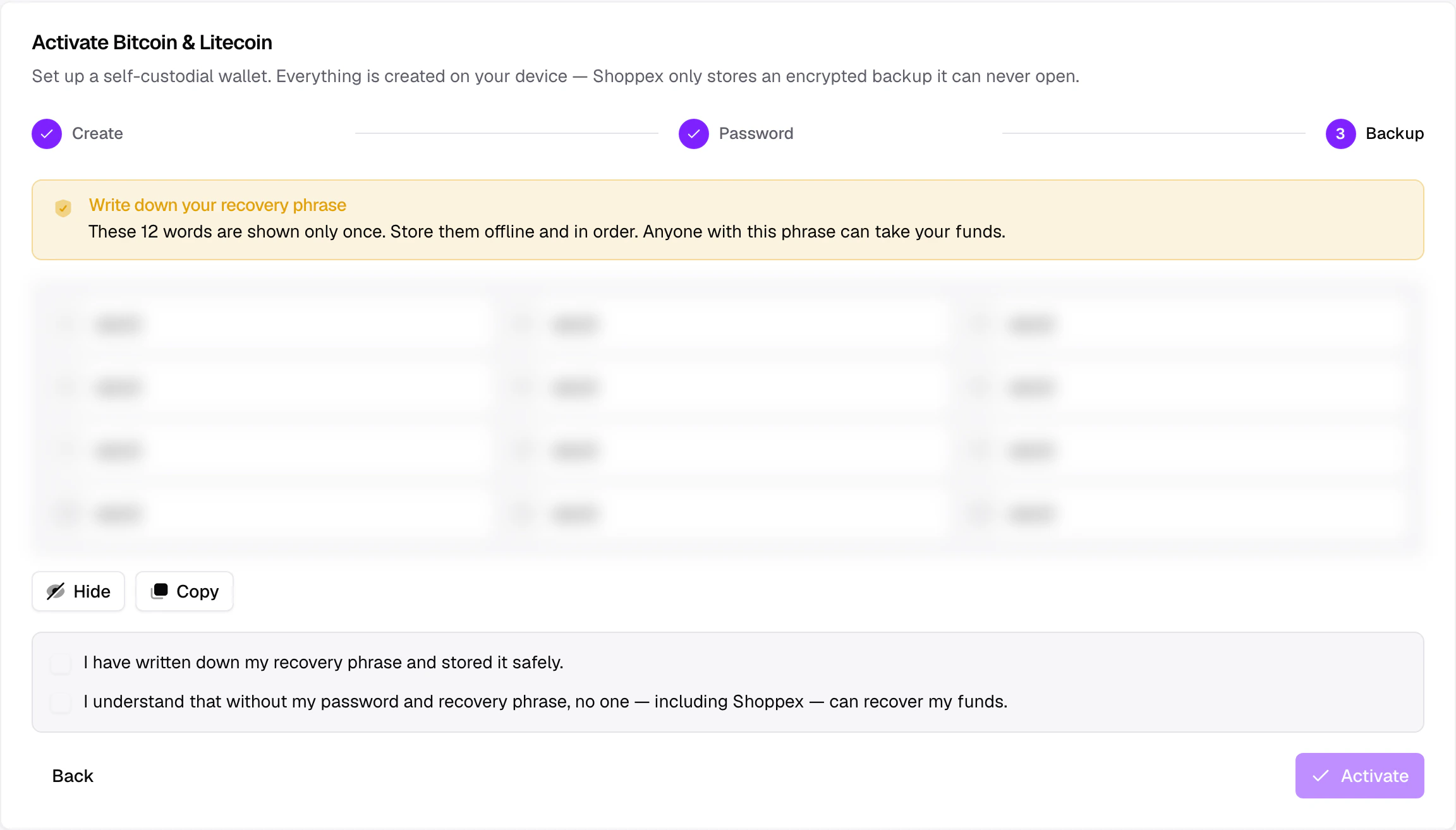
Wallet password vs. account login
This is the single most common point of confusion, so it’s worth stating plainly:
You’ll be asked for both when you send crypto: your account credential (or two-factor code) to
confirm it’s you, and your wallet password to actually sign the transaction.
Manage your funds
Day-to-day banking — balances, receiving, sending, and history — lives in the Wallet area (separate from the setup screen in Settings). The header marks it Self-custodial · Bitcoin & Litecoin.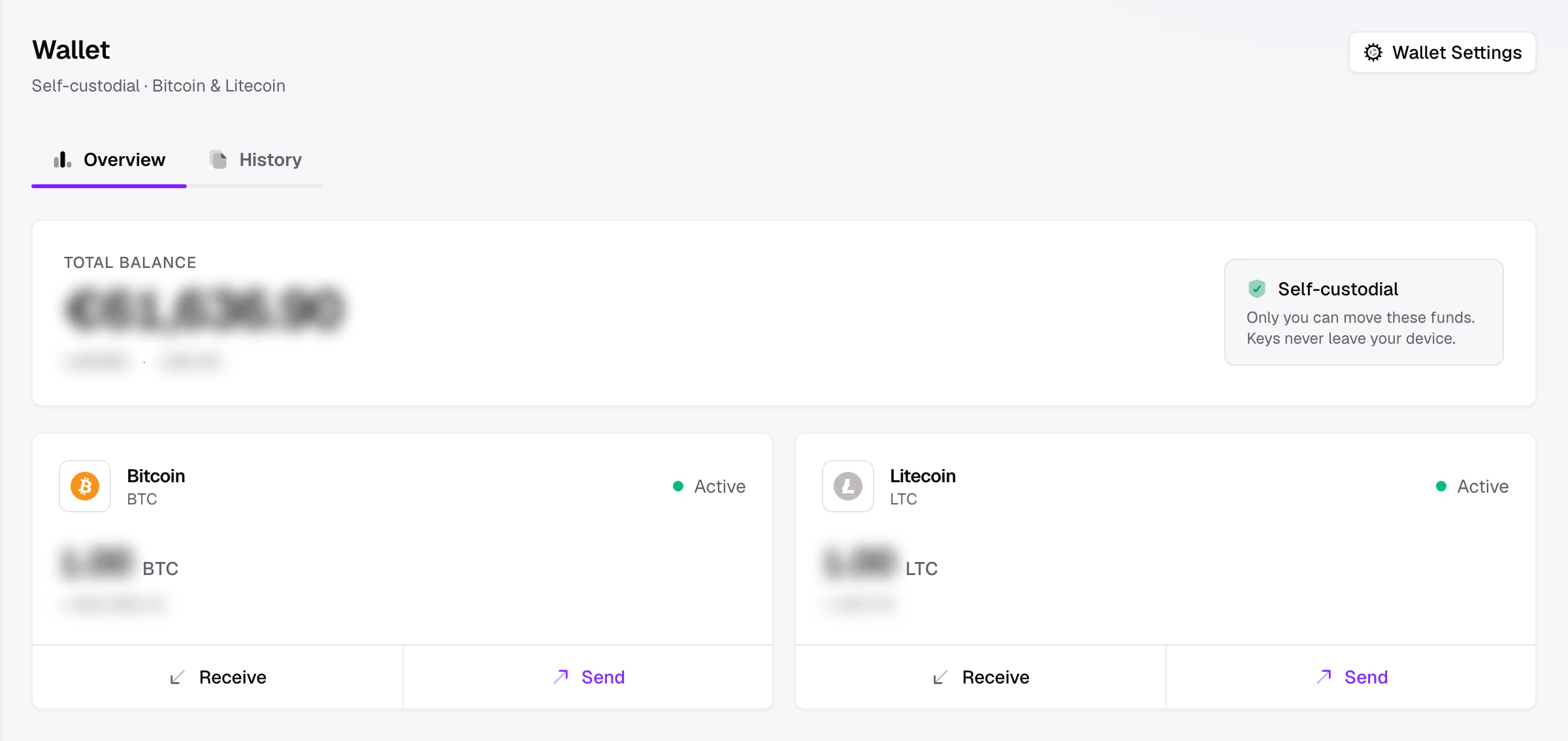
Receive
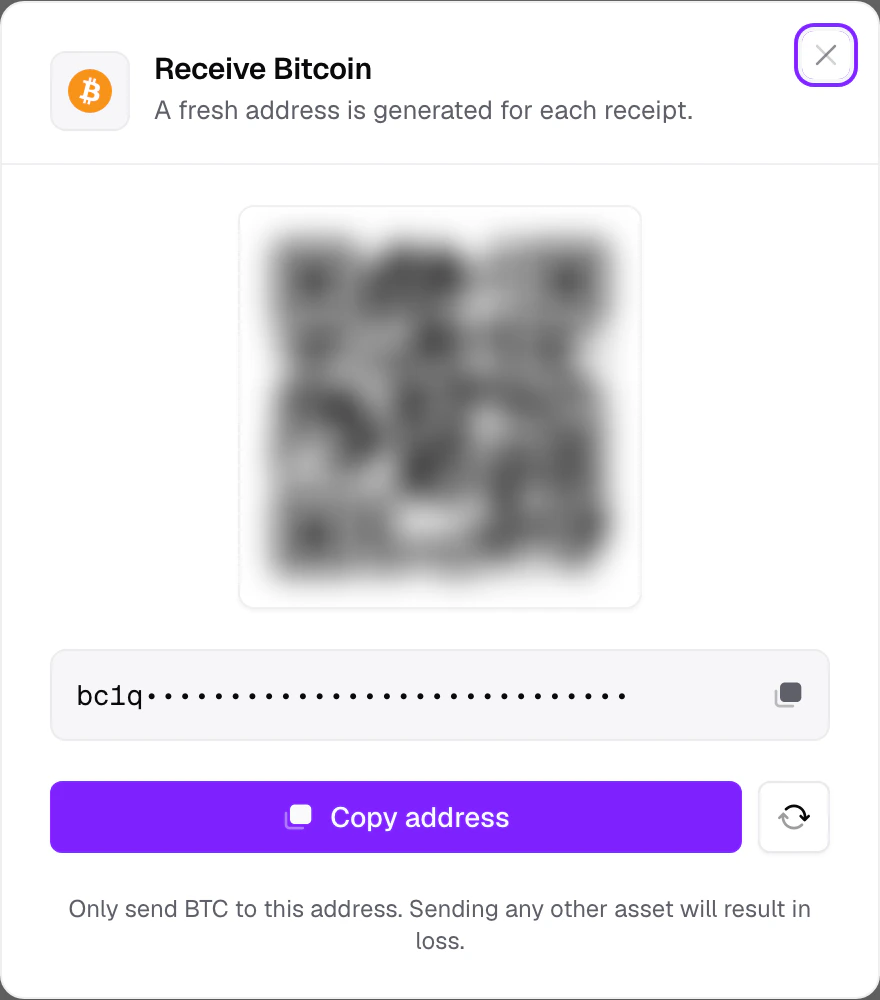
Click Receive on a coin to get a payment address.- A fresh address is generated for every receipt — standard practice that keeps your incoming payments harder to link together. Reusing an old address still works, but a new one is better.
- The dialog shows the address as text and as a QR code. Copy it, or let the payer scan it.
- Only send the matching coin to this address. Sending Bitcoin to a Litecoin address (or any other asset) results in permanent loss — the networks are separate.
Buyer-paid orders use this same mechanism automatically: Shoppex derives a receive address from
your wallet for each crypto invoice. You don’t hand out addresses manually for store sales — the
Receive dialog is for ad-hoc deposits.
Send
Sending crypto is deliberately high-friction, because transfers can’t be reversed. The flow walks through Details → Review → Sign.1
Details
Enter the recipient address and an amount. You can type the amount in the coin or, when a live
rate is available, switch to your fiat currency and Shoppex converts it. The address is checked
for the right format before you can continue.
2
Review
Confirm exactly what you’re sending: the amount, the full recipient address, the network fee
(calculated from current network conditions), and the total debit. Double-check the
recipient here — this is your last chance before signing.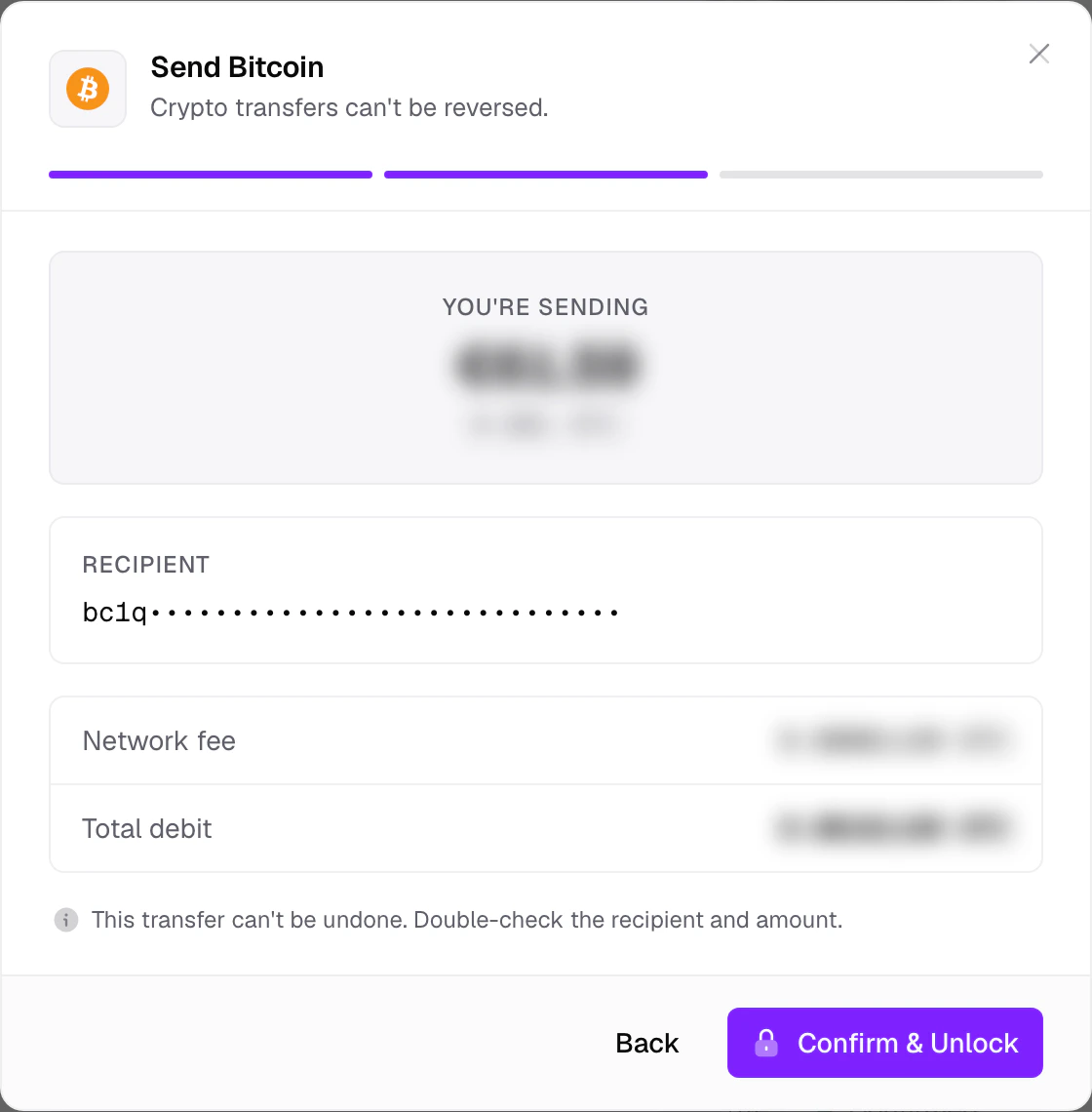
3
Sign
Authorize and sign on this device. You enter two things: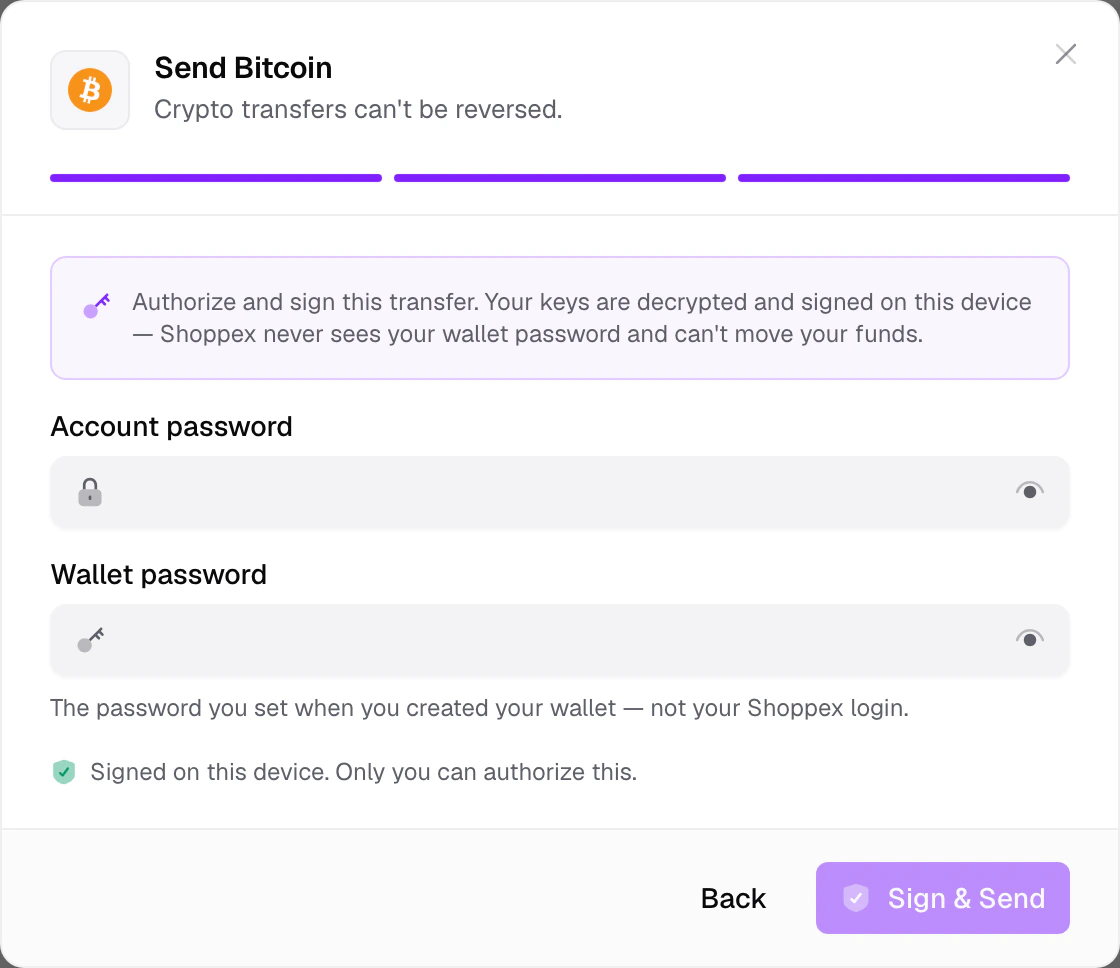
- Your account password (or two-factor code) — confirms it’s you.
- Your wallet password — decrypts your keys so the transaction can be signed locally.
Transactions and history
Every incoming and outgoing transfer appears in Recent activity on the overview, and in full in the History tab. Click any row to open its detail sheet.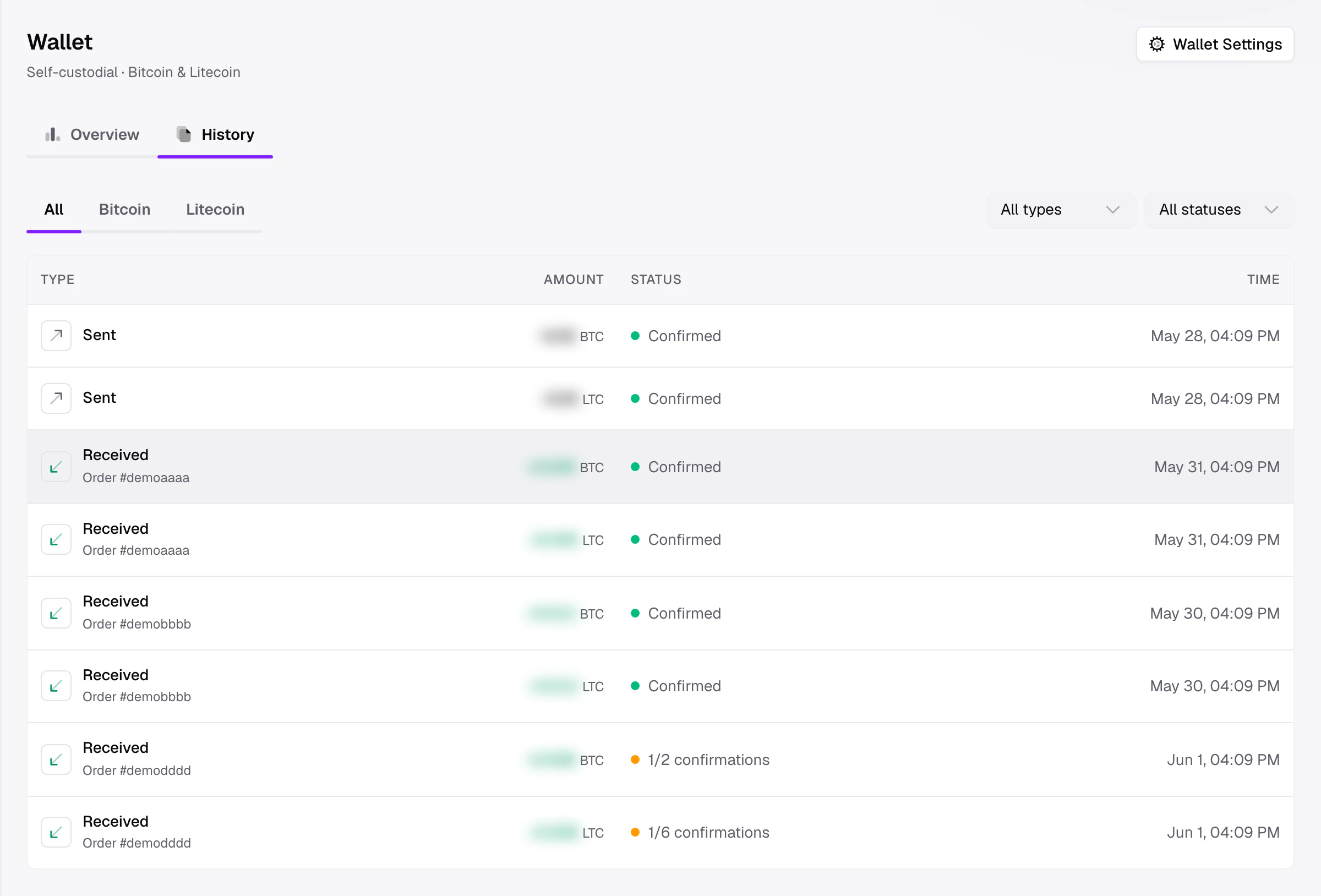
- Awaiting confirmation / N confirmations — the transaction is on-chain but hasn’t reached the number of confirmations you require. Shown as a pending/amber state.
- Confirmed — enough confirmations have cleared; the funds are settled and (for sales) the order is marked paid.
Per-chain settings
Each active chain has its own status card in the Shoppex Wallet section of Settings → Payments. A toggle turns the chain on or off, and a badge tells you its checkout state at a glance.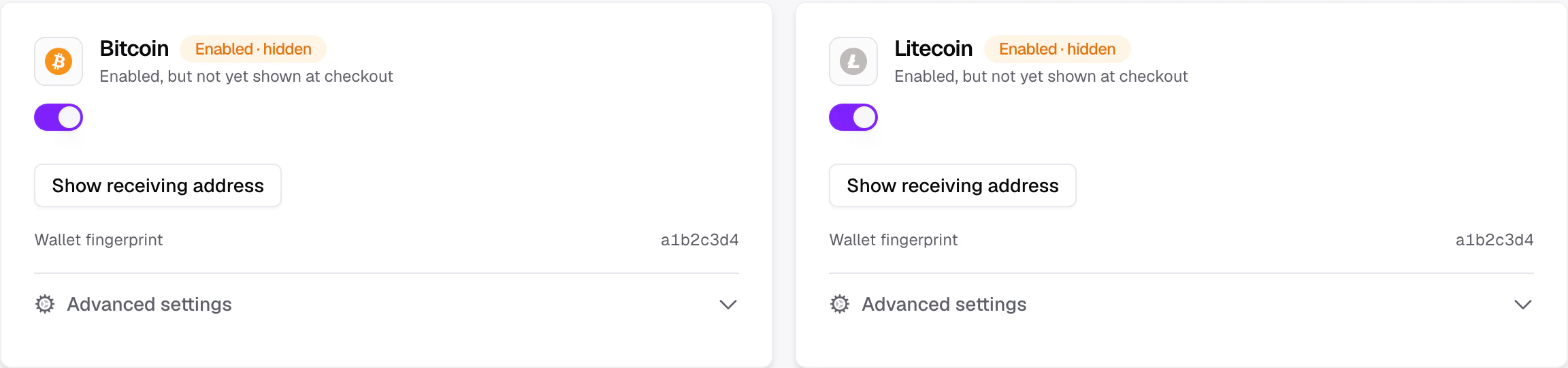
Checkout visibility
The badge on each card reflects two things — whether the chain is enabled, and whether it’s actually showing to buyers:
Each card also shows the wallet fingerprint — a short identifier so you can confirm the card
maps to the wallet you expect.
Advanced settings
Open Advanced settings on a chain card for the policies you rarely touch:Required confirmations
Required confirmations
How many on-chain confirmations an invoice needs before it clears, from 1 to 12. More
confirmations are safer against chain reorganizations but make buyers wait longer; the card
shows a rough estimated wait based on the chain’s block time.
Auto-accept underpayments
Auto-accept underpayments
Crypto buyers often land a few cents short after network fees. This setting completes the order
automatically when the shortfall is small. Per chain you can choose:
- Use store default — inherit your shop-wide underpayment setting.
- On for this coin — force auto-accept here, optionally capped by a max amount and a max percent shortfall.
- Off for this coin — never auto-accept underpayments on this chain.
Recovery backup
Recovery backup
Download an encrypted backup of your keys, or reveal your recovery phrase. See
Recovery and loss below.
Recovery and loss
Your wallet exists in two forms only: the encrypted copy on your device (unlocked by your wallet password) and your 12-word recovery phrase. Keep both safe and independent.Download an encrypted backup
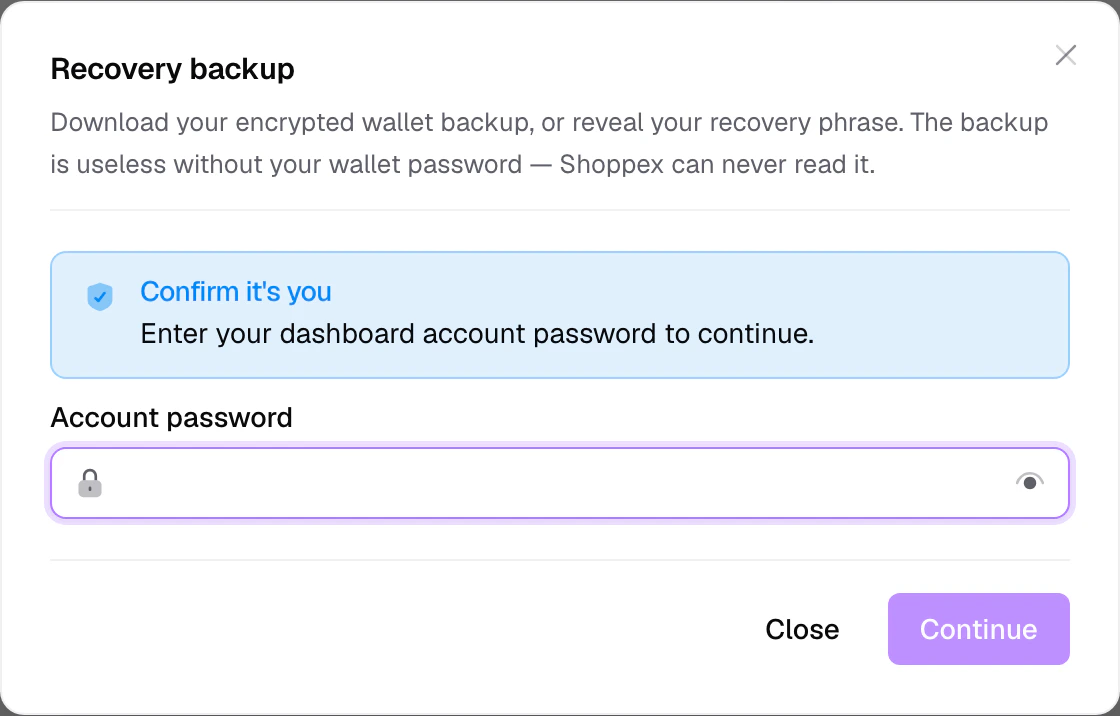
From a chain’s Advanced settings → Recovery backup → Download, you can save an encrypted backup file. To reach it you first confirm it’s you with an account step-up (your dashboard password, or a two-factor code if you have 2FA enabled).- The downloaded file is useless without your wallet password — Shoppex can never read it.
- It’s a safety net for moving your wallet to another device, not a substitute for your recovery phrase.
Reveal your recovery phrase
In the same dialog, after the account step-up, you can reveal your 12-word recovery phrase by entering your wallet password (the one you set when creating the wallet). The phrase is decrypted on your device — it never travels to Shoppex. Use this if you need to re-record your backup; treat the screen as sensitive.Where this fits
- For payouts, there’s nothing to withdraw from Shoppex — coins are already in your wallet on-chain once they confirm. See Payouts.
- To compare crypto options (self-custodial wallet vs. Cryptomus / Oxapay providers), and to set up the other gateways, see Payment gateways.